Ostranauts Controls Hub
Keyboard, mouse, nav console, and PDA reference for captains after the 1.0 launch
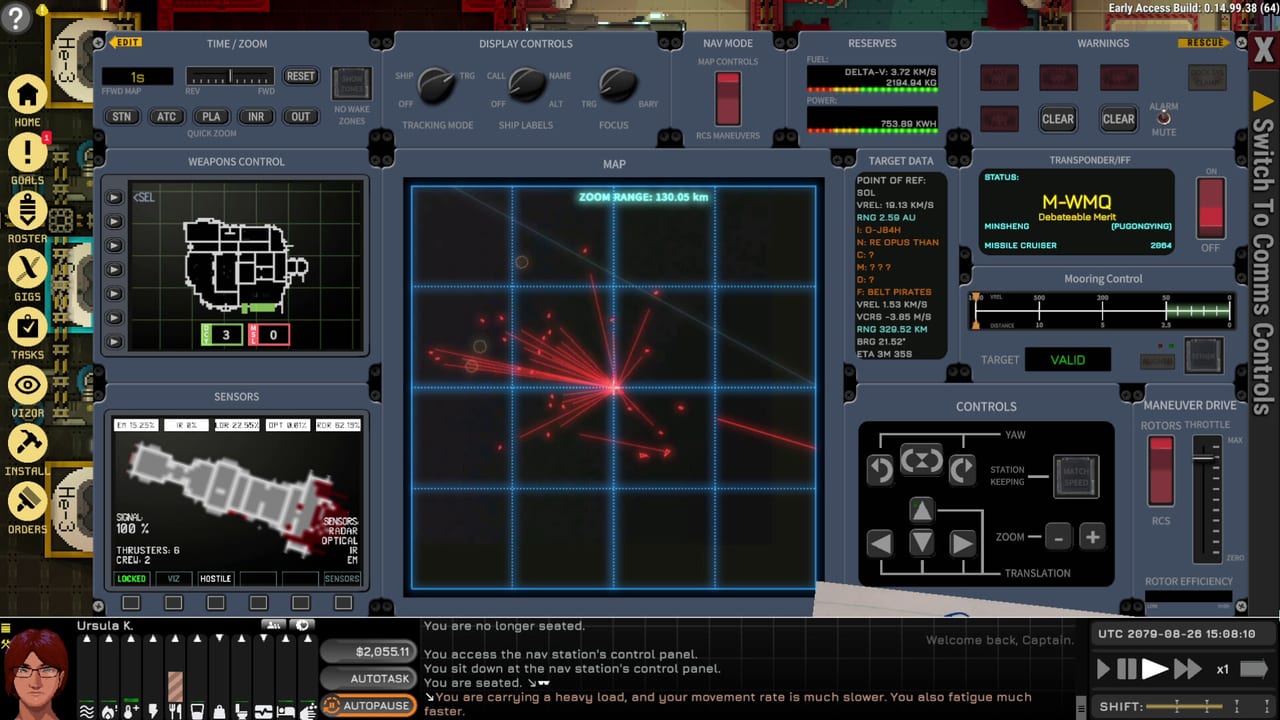
Ostranauts is a dense noir space-sim where the interface is as dangerous as vacuum. Blue Bottle Games shipped version 1.0 on Steam in August 2026 with English as the only official language, and almost every survival loop — mortgage payments, Newtonian flight, atmosphere alarms, salvage hauls — passes through the same handful of screens. This hub collects the control references we recommend keeping open while you play.
You do not need to memorize every hotkey on day one. Read Getting Started for the campaign arc, then bookmark the pages below when a specific system starts killing you.
Keyboard and camera basics
On foot, WASD pans the camera across your ship or station tilemap. Hold Shift while panning to move faster when you are touring a large hull. Space toggles pause — critical before you mis-click a thruster burn or walk into a depressurized corridor. Home recenters the camera on your active character; if follow mode feels flaky, click the portrait in the bottom-left panel as a backup.
I opens inventory for your captain and nearby ground tiles. [ and ] step simulation speed down and up; the UI also offers Super Fast Forward for sleep and long transits, though SFF is a poor substitute for queued construction work. Esc closes open windows, or opens the save/quit menu when nothing else is focused.
The full default binding list — including QAB keys 1–4, mouse walk/select rules, and debug toggles — lives on the dedicated keybinds page.
Quick Action Bar and context menus
Most interactions flow through the Quick Action Bar (QAB), which appears when you select a tile, object, or NPC. Right-click a tile to open the context menu; the first four actions map to 1, 2, 3, and 4 for muscle memory. Color coding helps at a glance: red for combat, green for social, blue for object use, yellow for build and repair.
When you forget which key toggles a pump or which action repairs a nav console, check keybinds first, then cross-read How to Fly and Dock for flight-specific WASD behavior — at the helm, those same letters move the ship instead of the camera.
Navigation console and COMMS
Flight, docking, undocking, and station hails all run through the nav console. You need a powered Transponder and Antenna, then Use on the helm from the QAB to sit and open the navigation UI. From there you switch between the tactical map, COMMS clearance requests, clamp engage states, station keeping, and manual RCS versus torch thrust depending on your drive fit.
The nav console reference walks each panel: map controls, warning lamps, throttle limits, relative velocity readouts, and the COMMS workflow for OKLG undock clearance. Pair it with the Map hub when you plan boneyard intercepts.
PDA apps, zones, and crew orders
Your PDA is the smartphone-style hub for Goals, Roster, Tasks, Install, Orders, Inventory, and Zones. Goals track tutorial and career objectives; Roster sets AI shift permissions; Tasks lists queued work; Install places new equipment; Orders bulk-queues uninstall, haul, repair, and dismantle jobs across selected tiles.
Zones define where loose items get hauled and which rooms restrict NPC movement. Forbid rules and haul routing matter as much as flight skill once you expand a salvage tub. The PDA and orders guide explains filter types, drag-select painting, and when build orders require your captain on board.
How controls connect to builds and systems
Control literacy pays off when debt pressure rises. A captain who pauses before plotting a torch course avoids wake-zone fines; one who reads shift timing in the finance panel avoids mortgage late fees. See Ship Mortgage and the mortgage shift planner for the economic side, and Starter Careers if you are still deciding whether your build assumes keyboard-heavy solo salvage or crew automation.
Advanced propulsion — fusion torch reactors, towing braces, ship flipping — blends nav console inputs with reactor panels. Start Fusion Torch Drive after you can reliably redock at OKLG using RCS alone.
Gamepad and Steam Deck
Fire in the Hold added Steam Deck, gamepad, and Steam Cloud support — not a replacement for keyboard workflows on dense PDA screens. The dedicated Gamepad and Steam Deck page covers rebinding in Options, when handheld travel helps versus when precise RCS docking hurts, and Cloud save cautions with Workshop mods.
Suggested reading order
- Keybinds — keep visible during your first docked hour
- Nav Console — before your first undock request
- PDA and Orders — before you queue a ten-room haul
- Gamepad and Steam Deck — if you play on handheld or controller
- Getting Started — campaign context and OKLG layout
- How to Fly and Dock — Newtonian flight depth
For printable preflight lists, visit the Tools hub. Returning players should skim Updates in case a patch rebinding or UI change invalidated old muscle memory.
Frequently Asked Questions
Quick answers for spacers who want to stay alive.
Does Ostranauts support controller or remappable keys?
Yes — **gamepad and Steam Deck support shipped with Fire in the Hold**. Keyboard and mouse remain best for dense UI; check Options for rebinding. See Gamepad and Steam Deck and keybinds.
Why do WASD keys move my ship instead of the camera?
WASD pans the camera on foot. At the nav console in flight mode, WASD translates the hull and Q/E control rotation. See the nav console reference for the mode switch.
Which control page should I read before undocking?
Read keybinds for pause and camera basics, then nav console for COMMS clearance, clamps, and RCS. Follow How to Fly and Dock for the full procedure.