Ostranauts Navigation Console Reference
Map, COMMS, clamps, station keeping, and RCS versus torch from the helm
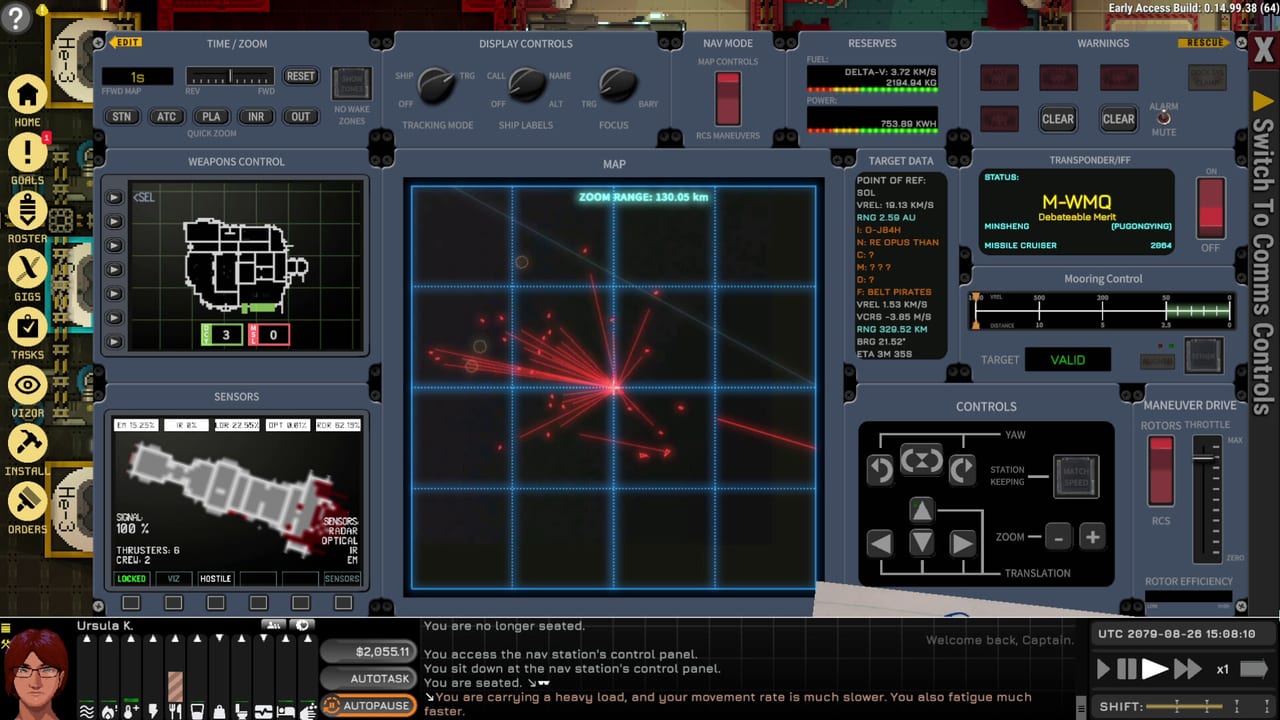
Every Ostranauts ship flies from the navigation console — a multi-panel helm that merges tactical map, COMMS, diagnostics, and thrust controls. Blue Bottle Games models flight as Newtonian: velocity persists until thrusters cancel it, and docking failures usually trace to relative speed, not missing hitboxes. This reference documents the console layout captains use after the 1.0 Steam release on 2026-08-03.
You cannot open the nav UI from memory alone. Select the nav station, choose Use from the QAB (hotkey 1 if it is your first action), and confirm power reaches avionics. A dark console looks broken; often the battery is drained or a breaker tripped. Pair this page with Keybinds for flight WASD and How to Fly and Dock for full approach procedures.
Prerequisites: transponder, antenna, and power
Legal flight near OKLG requires a working Transponder and Antenna. The transponder panel shows ship name and license validity; flying “dark” invites proximity warnings and law enforcement attention at range. COMMS hails fail silently if avionics are unpowered — a common rookie mistake before first undock.
Before you sit at the helm:
- Confirm reactor or battery online with headroom for RCS and nav loads
- Verify antenna extends or deploys if your hull stores it folded
- Read warning lamps — nav Warnings can force sim speed to x1 when alarms trigger
Atmosphere and suit prep are separate systems; see Manage Atmosphere and the atmosphere checklist before long EVA returns to a drifting hull.
Map panel and targeting
The map is the center of the console. Icons encode the neighborhood:
- Blue arrow — your ship
- Red arrows — local authority or traffic
- Diamond — station (OKLG, Mescaform, etc.)
- Yellow stars — derelicts and salvage targets
Left-click a contact to select it as target. The right side shows positional data: range, relative velocity (VREL), and approach geometry hints. Map Controls advance a simulation preview so you can see where contacts will be minutes ahead — valuable before a boneyard intercept.
Quick Zoom reframes the map when plotting long burns. For regional context beyond the tactical view, open the Map hub and cross-read How to Salvage for permit range planning.
COMMS: hail, dock, and undock
Click Comms Controls on the console edge to switch from nav thrust to hail workflows.
Typical OKLG undock sequence:
- Hail Ship — select OKLG from sorted target list (selected targets pin top-left)
- Request Undocking Clearance — wait for approval
- CLAMPS — release dock clamps once cleared
- Switch back to Nav Controls
- Use RCS to slide clear without scraping the ring
Docking reverses the handshake: hail within range (roughly 5 km for clearance requests; tighter for clamp alignment), request docking clearance or announce forced dock if you accept legal risk, then align green rings and engage clamp when the proximity lamp allows.
COMMS buttons sit on console margins — the UI uses directional labels rather than a single chat window. If hail lists look empty, check antenna power and target distance.
Clamps, alignment, and station keeping
Clamp engage requires acceptable alignment — white squares lining up with green guides, clamp align lamp green, and controlled VREL. Approaching too fast converts a docking attempt into hull damage and lawsuit bait.
Station keeping is a toggle that auto-points your ship at the selected target and drives VREL toward zero. It is not a cheat code: it consumes RCS remass, fails if thrusters are offline, and does not replace planning for torch arcs.
Use station keeping when:
- You matched velocity but drift slowly off-axis
- You need hands-free hold while you verify reactor readouts
- You are learning RCS without adding spin chaos
For fusion drives, station keeping complements but does not replace torch course plot workflows in Fusion Torch Drive.
RCS versus torch thrust
Most starter hulls fly on RCS — cold-gas or chemical jets for translate and rotate. Controls include:
- WASD translation (forward, strafe, back, strafe)
- Q / E rotation
- Throttle slider linked to docking COMMS screen for thrust caps
Torch or fusion drives add high-impulse burns illegal or suicidal in dock volumes. Nav mode switches between RCS and rotor systems when operating near bodies with atmospheric constraints. Maneuver Drive throttle limits maximum thruster authority — lower it for fine approach, raise it for open-space translation.
Critical rules:
- No wake zones — torch plumes near stations trigger fines and damage; see fusion wake notes in Fusion Torch Drive
- Towing — moving a clamped derelict without a towing brace damages both hulls; install brace hardware before boosting
- Relative velocity first — cancel closing speed before aesthetic rotation
Warnings, diagnostics, and logs
The Warnings panel forces attention: sim speed drops toward x1, lamps flash, and audible beeps stack during depressurization, collision proximity, or drive faults. Diagnostics summarizes mass, power draw, and structural condition; Ship logs record impacts for insurance fights you cannot win.
Treat warnings as mandatory interrupts, not suggestions. Many captains die because they muted beeps while sorting inventory.
Multi-function display and long-range plotting
The MFD consolidates submenus for comms routing and drive state. Long-range torch travel adds Plot Course, Engage Course, drift phase, and acceleration limit fields — always pause before engaging autopilot burns so you do not drift off the plotted start point.
Wake zones, reactant remaining, and RCS remass estimates populate after a successful plot. If Engage Course greys out, you are misaligned or outside legal thrust volume.
Console workflow cheat sheet
| Phase | Console focus |
|---|---|
| Pre-flight | Power, warnings clear, transponder valid |
| Undock | COMMS clearance → clamps release → RCS clear |
| Transit | Map preview, station keeping optional, throttle cap |
| Approach | VREL near zero, alignment greens, clamp engage |
| Tow | Towing brace secured before translation |
| Long burn | Reactor checklist, plot course, unpause at x1 |
Related reading
- Keybinds — flight WASD and pause
- PDA and Orders — queue repairs while autopilot runs
- How to Fly and Dock — step-by-step OKLG undock
- Ship Mortgage — shift timing if you loiter docked
- Controls hub — full control stack overview
Frequently Asked Questions
Quick answers for spacers who want to stay alive.
Why cannot I hail OKLG for undock clearance?
Confirm the Transponder and Antenna are powered, you are seated at the nav console via QAB Use, and COMMS Controls is active. Unpowered avionics fail silently.
What is station keeping on the nav console?
Station keeping auto-points at the selected target and drives relative velocity toward zero using RCS. It helps hold position but consumes remass and requires powered thrusters.
When should I use RCS instead of the torch drive?
Use RCS for docking, undock clearance, and fine approach inside stations or wake zones. Reserve torch or fusion burns for open-space transit plotted on the long-range map.